Recurring reminders are one of the simplest ways to reduce mental load on Mac. You should not have to remember every weekly report, monthly payment, medication schedule, workout block, or household routine by memory alone.
The problem is that many reminder tools make repeating reminders feel heavier than they need to be. If the setup takes too long, people either avoid creating the reminder or recreate it manually every time. If you are still figuring out whether you want a lighter reminder workflow at all, our guide to lightweight reminder apps for Mac gives the bigger picture first.
This guide explains how to set recurring reminders on Mac, when Apple Reminders is enough, what makes recurring reminders actually useful, and why a faster keyboard-first workflow can be better if you create repeating reminders often.
What recurring reminders are good for
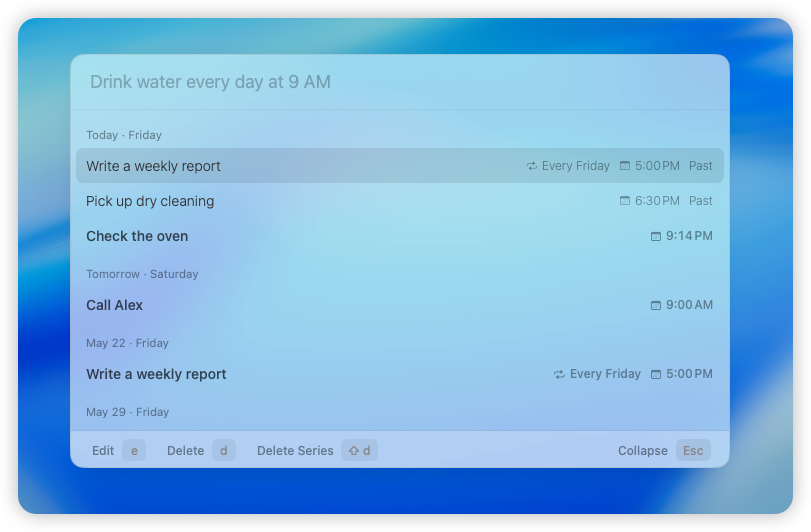
Recurring reminders work best for things that happen on a predictable cadence and should not depend on memory.
Common examples include:
- taking medication every day at 8am;
- submitting a weekly report every Friday at 5pm;
- paying rent on the 1st of every month;
- watering plants every Sunday morning;
- checking backups every Monday;
- stretching every hour during work;
- reviewing your budget once a month.
These are not always tasks you need to organize into projects. Often, they are simply commitments to your future self that need a reliable alert at the right time.
How to set recurring reminders on Mac with Apple Reminders
If you want a built-in solution, Apple Reminders is the obvious place to start. It works well for many Mac users, especially if you already use iPhone, iPad, and iCloud.
The basic workflow is straightforward:
- Open Apple Reminders.
- Create a new reminder.
- Add a date and time.
- Set the repeat pattern, such as daily, weekly, monthly, or custom.
For many people, that is perfectly fine. Apple Reminders is a strong default if you want sync across devices, shared lists, and a familiar Apple app.
But the built-in workflow can still feel like a list-management experience. If you are creating reminders in the middle of work, the friction is usually not in whether repeating rules exist. It is in how quickly you can capture the reminder and get back to what you were doing.
The real challenge is quick capture
Most recurring reminders do not appear during a calm planning session. They appear in the middle of the day:
- while you are coding and remember to check a deploy every weekday at 4;
- while you are in a meeting and realize you need a Friday follow-up;
- while you are paying a bill and want a reminder for next month;
- while you are working and remember a weekly routine you keep forgetting.
At that moment, every extra click matters.
If you have to open a larger app, choose a list, add a reminder, open the date picker, open repeat options, and confirm everything manually, the reminder flow starts to feel like its own interruption.
That is why many people who specifically need recurring reminders on Mac end up wanting a lighter tool rather than a bigger one.
A faster recurring reminder workflow
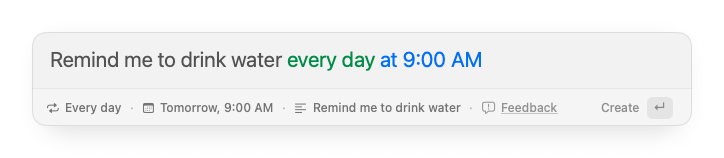
A fast recurring reminder workflow usually looks like this:
- Open a quick reminder bar with a shortcut.
- Type the reminder naturally.
- Press Enter.
- Return to work.
Examples:
- “pay rent every month on the 1st at 9am”
- “submit weekly report every Friday at 5pm”
- “take vitamins every day at 8am”
- “water plants every Sunday morning”
- “stretch every hour”
This is much closer to how people already think. You are not building the reminder through a form. You are typing the reminder the way it already exists in your head.
That is the workflow Remindy is built around. It is a quick reminder app for Mac that understands natural language timing, including recurring reminders, so you can capture the reminder and move on without a larger task-management ritual.
Daily, weekly, and monthly reminders need slightly different handling
Not all recurring reminders behave the same way. A useful reminder app should make each pattern feel simple.
Daily reminders
Daily reminders are useful for routines and consistency:
- medication;
- workouts;
- breaks;
- shutdown routines;
- study blocks.
The key with daily reminders is predictability. You want them easy to set and easy to trust.
Weekly reminders
Weekly reminders are often tied to work and maintenance:
- team updates every Monday;
- reports every Friday;
- cleaning routines every weekend;
- review sessions every Sunday evening.
Weekly reminders are where quick capture becomes especially useful, because these are often created in response to something you just noticed you keep forgetting.
Monthly reminders
Monthly reminders are often more important than they look:
- rent;
- invoices;
- subscriptions;
- financial reviews;
- admin follow-ups.
These are also the reminders people are most likely to regret missing. A good recurring reminder workflow should make monthly reminders easy to create the first time so they continue working in the background.
When Apple Reminders is enough
Apple Reminders is a good fit if:
- you want recurring reminders across all your Apple devices;
- you already keep most reminders in Apple apps;
- you use shared lists;
- you do not mind a more traditional list-based interface;
- you create recurring reminders occasionally rather than constantly.
For many users, that is enough. There is no need to replace a tool that already matches your workflow.
If you are actively comparing the built-in app with a faster alternative, our article on Apple Reminders vs a quick reminder app for Mac goes deeper on that tradeoff.
When a quick reminder app is better
A quick reminder app makes more sense if:
- you often create reminders while already deep in work;
- you want keyboard-first reminder capture;
- you prefer natural language over date pickers and repeat menus;
- you mainly need time-based reminders, not project organization;
- you want a local tool without account setup;
- you create a lot of small recurring reminders for personal or work routines.
This is where Remindy fits especially well. It is intentionally lightweight, supports one-time and recurring reminders, and keeps the reminder flow focused on speed rather than organization overhead.
That lighter approach is also why we think of Remindy less as a task manager and more as part of a lightweight reminder workflow on Mac.
Why local-first can be a calmer fit for reminders
Many recurring reminders contain personal details:
- medications;
- payments;
- names;
- appointments;
- internal work follow-ups;
- family routines.
For that reason, some people prefer reminders that stay on the Mac they already use. Remindy is designed as a local-first reminder app for Mac, with no account required and no cloud sync required.
That tradeoff is not for everyone. If sync is your top priority, a cloud-first app may fit better. But if simplicity and speed matter more, local-first can feel refreshingly small and focused.
A simple reminder stack for Mac
You do not need one app to do everything.
A practical setup can look like this:
- Use Calendar for events and appointments.
- Use Apple Reminders or a task manager for larger lists and planning.
- Use Remindy for quick one-time or recurring reminders that should take only a few seconds to create.
That kind of split is useful because recurring reminders are often neither full calendar events nor project tasks. They sit in the middle: time-based, important, and easy to forget.
Tips for making recurring reminders actually useful
Even the best reminder app will feel noisy if the reminders are poorly designed. A few small rules help:
- keep reminder text clear and specific;
- attach a realistic time, not just a vague date;
- avoid creating too many low-value repeating reminders;
- use recurring reminders for actions, not for guilt;
- review older recurring reminders occasionally and remove the ones you no longer need.
The goal is not to create more notifications. It is to create fewer things you have to remember by yourself.
The best way to set recurring reminders on Mac
The best method depends on your workflow.
If you want a built-in, synced reminder system, Apple Reminders is a strong choice. If you want recurring reminders that are faster to create, easier to type naturally, and lighter to use during work, a quick reminder app can be a better fit.
If you want a keyboard-first reminder app for Mac that supports recurring reminders, natural language input in 10 languages, and a local-first workflow without accounts, Remindy is designed for that exact job.
You can also read our guides on lightweight reminder apps for Mac and Apple Reminders vs a quick reminder app if you want to compare workflows before trying one.
Frequently asked questions
Can I set recurring reminders on Mac?
Yes. You can set recurring reminders on Mac with Apple Reminders or with third-party reminder apps that support repeating schedules.
What kinds of recurring reminders can I set?
Most reminder apps support daily, weekly, monthly, and custom repeating reminders. Remindy supports recurring reminders like every day, every week, every month, and other natural repeating schedules.
What is the fastest way to set recurring reminders on Mac?
If speed matters, a keyboard-first reminder app with natural language input is usually the fastest option. It lets you type the reminder and repeat pattern in one step.
Is Remindy a task manager?
No. Remindy is lighter than a task manager. It is built for quick one-time reminders, recurring routines, and time-based follow-ups on Mac.
Does Remindy require an account?
No. Remindy does not require an account or cloud sync. It is designed as a local-first reminder app for Mac.